
Applies To Versions:
20.4 through 25.2
1. Log into a domain controller or workstation with Active Directory Tools installed. Launch Active Directory Users and
Computers (must be a domain admin to make changes).
2. Search for the problem user account not able to login to ApplicationXtender even though they are part of a group that has
access.
3. Go to the properties of the user account making sure that Advanced features is turned on so you can see the Security tab.
Verify that Windows Authentication Access Group is missing. It should be there by default when the account is created, but in
this case it is missing.
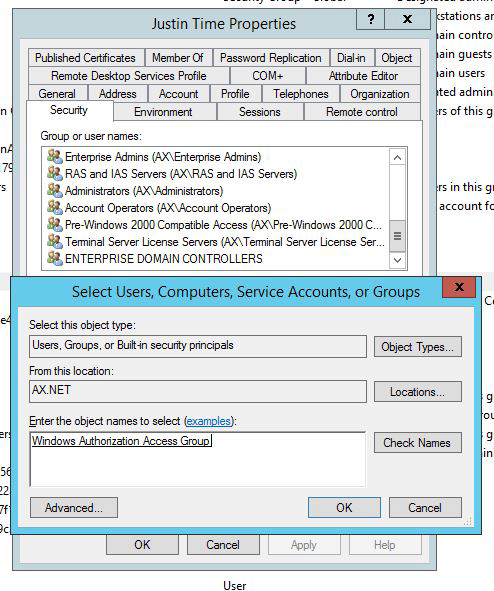
4. From the Security tab, click Add and enter the object name Windows and click Check names to populate the entry, "Windows
Authentication Access Group". Click OK.
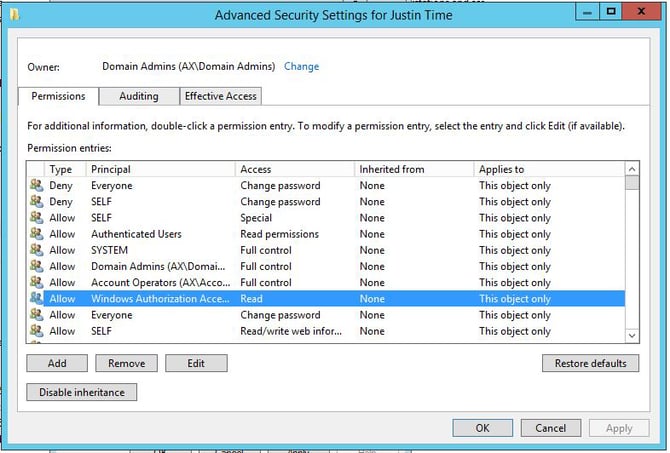
5. Click the Advanced button, select the Windows Authorization Access Group, and click the edit button.
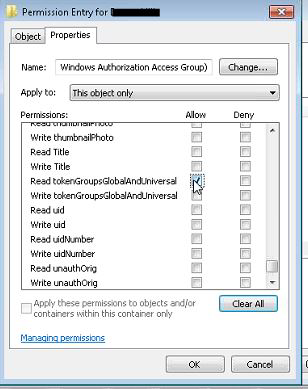
6. Scroll to the bottom of the Permission Entry window. (On Windows Server 2008 / 2008 R2, you'll need to click the Properties
tab.)
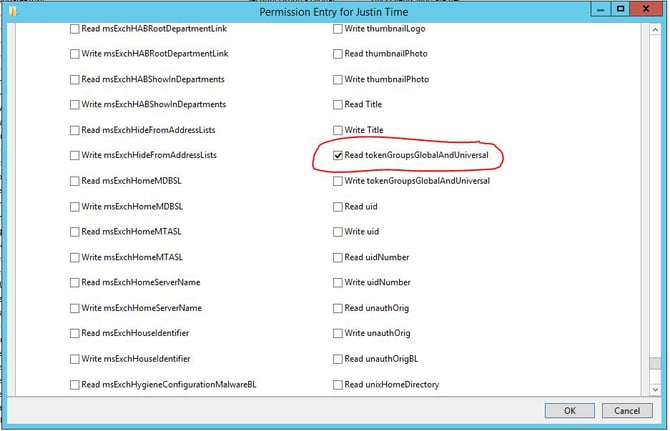
7. Clear all entries (uncheck all). Scroll down again after they are all unchecked. Near the bottom of the Properties section, the
only ONE permission that needs to be allowed is: Read tokenGroupsGlobalAnduniversal.
8. Select OK to close the window,
9. Click Apply and OK to save changes on the Advanced Security Settings window.
10. Click Apply and OK on the user Properties window to save the changes to the user account.