
Version:
All currently supported versions
Resolution:
Note: Only a system administrators can perform this process.
Run a search to identify the files to delete. If your project lacks a date field, use Advanced Search to access the system‑generated field Date Created.
In this example, the Scan Date field is used to locate all files from 2021. If unavailable, Date Created can be used instead.
Example search: All files from 2021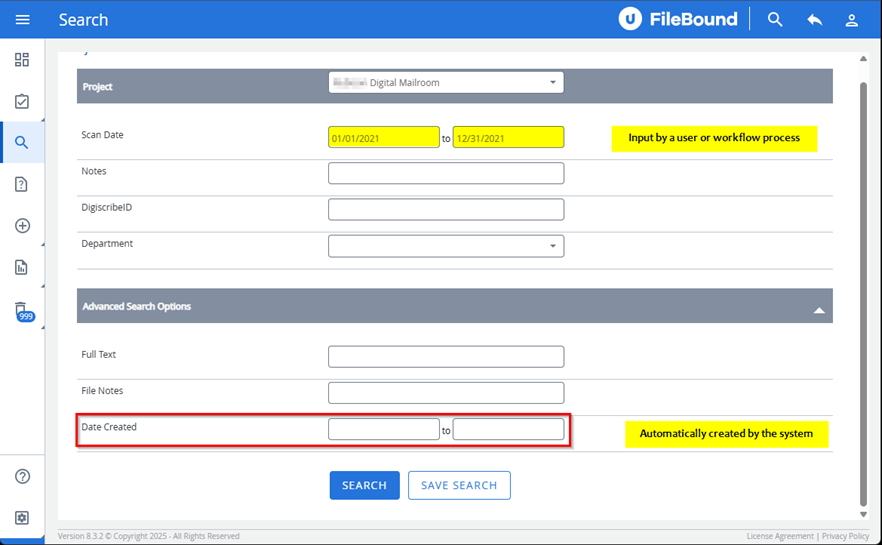
The search returned 2,692 results
If we click the top-left checkbox to select all it shows 25 items selected 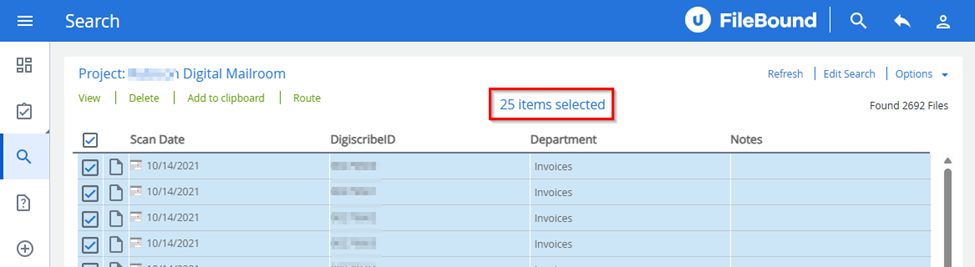
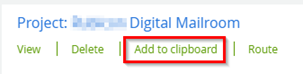
If we select the green Add to Clipboard link below our project name on the left, it will add these 25 selected items to the clipboard. We don’t want that
Instead, select the Options drop-down menu to the top right of the page, then “Add All to Clipboard”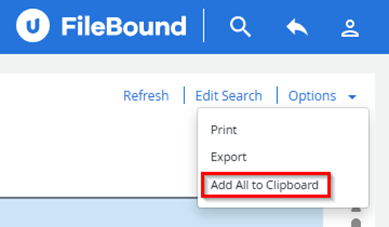
Note: You’ll need patience at this point. It can take some time for the next screen to show up. In some cases, an entire minute or more
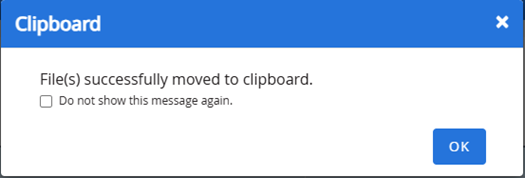
After the pause you’ll see a confirmation pop-up window stating everything was added to the Clipboard. Click OK.
You will now see a new icon on the left-hand pane of FileBound and be brought to the Clipboard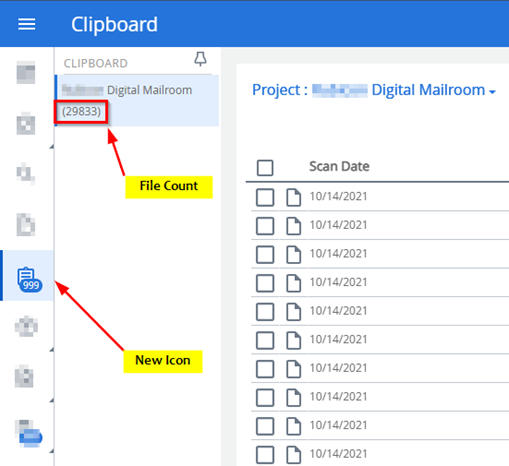
Review the Clipboard to confirm the file count and contents. When ready to proceed:
Select Options in the upper‑right corner of the Clipboard.
Under Administrative Functions, select Delete All Files.
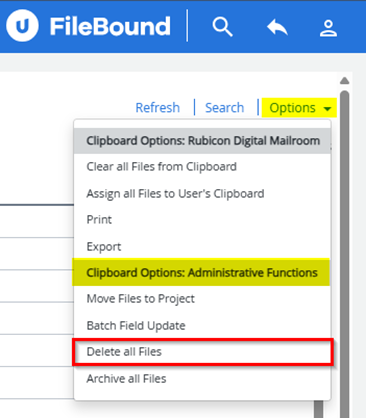
If the Clipboard contents are incorrect, select Clear All Files from Clipboard and repeat the steps above.