
Version:
All currently supported version
Scenario:
A valid CA certificate has been installed on the IIS server hosting ReST services.
The following steps include screenshots, and describe steps followed in, Keystore Explore©
First, you need to export the certificate, including the private key, from Windows Certmgr.msc
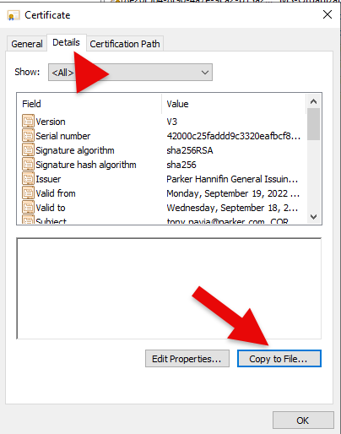
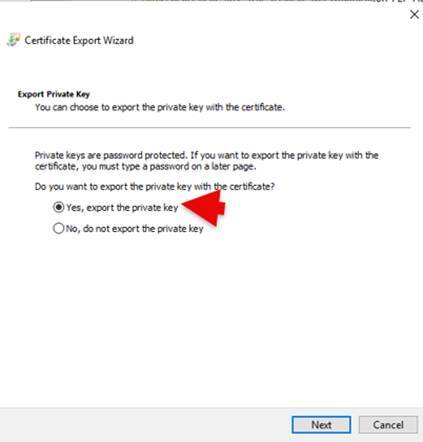
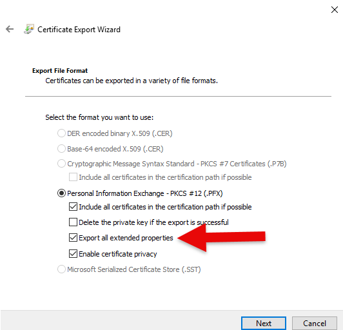
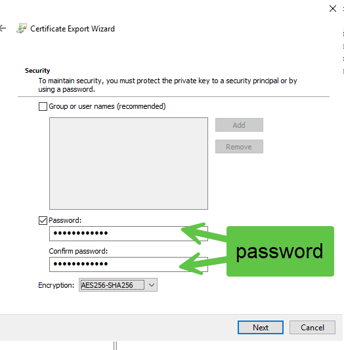
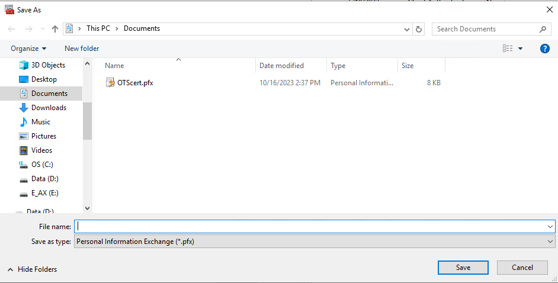
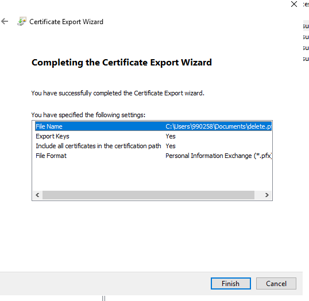
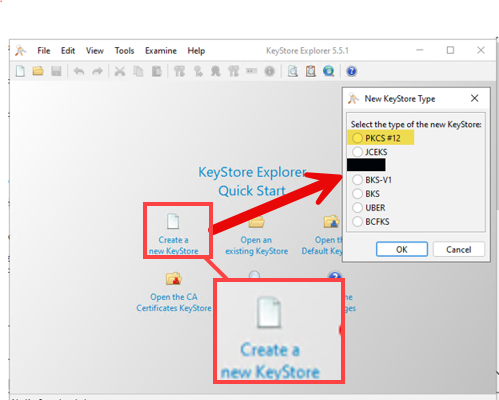
Now you will create a keystore using KeyStore Explore
You will import the keypair that was exported earlier
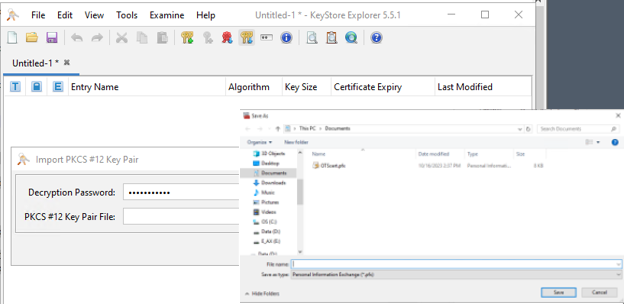
When prompted for a name, the default will be replaced with tomcat. This is important in the next steps.
Save the file to your OTS_Base\Settings folder
Now you will create a Truststore
Open an administrative command prompt
paste the following, edit your path and password, and press enter
- Note: This exports the private key from the keystore
keytool.exe -export -alias tomcat -file C:\OTS_Base_24.4\settings\ots.cer -keystore C:\OTS_Base_24.4\settings\OTSKeystore.jks -storepass 1Metasource$
- Additional information:
This is a Java keytool command that exports a certificate from a keystore to a file. Here's the breakdown:
keytool.exe — Java's key and certificate management utility on Windows.
-export — The action: export a certificate (same as -exportcert, just the older/shorter form).
-alias tomcat — The alias of the certificate entry to export from the keystore.
-file OTS_Base\Settings\ots.cer — The output file where the exported certificate will be saved. This will be a raw certificate file.
-keystore OTS_Base\Settings\OTStruststore.jks — The source keystore (created using Keystore Explorer) containing the certificate to export.
-storepass — The password flag, but no password is provided after it. This means keytool will either prompt you interactively to type the password
In the same command prompt window paste this command, after verifying your path and password press enter
keytool.exe -import -alias Tomcat -file C:\OTS_Base_24.4\settings\ots.cer -keystore C:\OTS_Base_24.4\settings
\OTStruststore.jks -storepass 1Metasource$
- Additional information:
This is a Java keytool command that imports a certificate into a truststore. Here's the breakdown:
keytool.exe — Java's key and certificate management utility on Windows.
-import — The action: import a certificate into a keystore/truststore.
-alias tomcat — The alias name this certificate will be stored under in the destination keystore.
-file OTS_Base\Settings\OTS.cer — The source certificate file to import. This is the .cer file that was exported in your previous command.
-keystore OTS_Base\Settings\ OTStruststore.jks — The destination truststore. If it doesn't exist, keytool will create it.
-storepass 1Metasource$ — The password for the destination truststore.
This is the second half of the export/import pair. The previous command exported the "tomcat" certificate from truststore.jks into OTS.cer, and this command imports that certificate from OTS.cer into otstruststore.jks. Together, they effectively copy a certificate from one keystore into another.
When you run this, keytool will display the certificate details and ask "Trust this certificate? [no]:" — type yes to confirm the import.
Copy the JKS files to \OTS_base\settings
OTS configuration files
1. Edit SERVER.XML
In your OTS TomcatBase/ots /conf/server.xml.
Line 59 in Notepad++ looks like this
<Connector port= ${ots.port} protocol="HTTP/1.1" connectionTimeout="20000"
Edit the port= to look like this
<Connector port="8080" protocol="HTTP/1.1" connectionTimeout="20000"
redirectPort="8443" />
Got to line 75
Add eystoreFile="C:/OTS_Base_24.4/settings/OTSkeystore.jks" keystorePass="1Metasource$" keystoreType="PKCS12" between "TLS" and the end tag />
<Connector port="8443" protocol="org.apache.coyote.http11.Http11NioProtocol"
maxThreads="150" SSLEnabled="true" scheme="https" secure="true"
clientAuth="false" sslProtocol="TLS" keystoreFile="C:/OTS_Base_24.4/settings/OTSkeystore.jks" keystorePass="1Metasource$" keystoreType="PKCS12"/>

2. Edit SETENV.BAT
In line 48 make sure the prot number is 8443
In line 50 make sure the host name matches the FQDN in the subject alternative name property of the CA cert in Windows certificate manager
Add JVM parameters to point to trust store created in step 4.
In TomcatBase/ots/bin/setenv.bat, add the following lines below line 58:
set CATALINA_OPTS=%CATALINA_OPTS% -Djavax.net.ssl.trustStore="C:/OTS_Base_24.4/settings/OTStruststore.jks"
set CATALINA_OPTS=%CATALINA_OPTS% -Djavax.net.ssl.trustStorePassword=1Metasource$
set CATALINA_OPTS=%CATALINA_OPTS% -Djavax.net.ssl.trustStoreType="PKCS12"
3.DESIGNER
Modify lines 34 and 44 (approximately)
default.jvmargs=-Xmx800M -Djavax.net.ssl.trustStore=C:/OTS_Base_24.4/settings/OTStruststore.jks -Djavax.net.ssl.trustStorePassword=1Metasource$ -Djavax.net.ssl.trustStoreType="PKCS12"

Additional notes:
You will need to restart Tomcat once the changes to the setenv.bat(sh) are made