---
title: Add Content
description: Discuss this process.
---
[Skip to content](https://knowledgebase.metasource.com/workdocs/add-content#main-content)
[](https://www.metasource.com/)
Open main navigation
Close main navigation
- [Return to WorkDocs™](https://sourcehr.filebound.com/LogOn.aspx)
[Return to WorkDocs™](https://sourcehr.filebound.com/LogOn.aspx)
Hello. How can we help you?
- There are no suggestions because the search field is empty.
1. [WorkDocs Customer Knowledge Center](https://knowledgebase.metasource.com/workdocs?hsLang=en-us)
2. [Taking Action](https://knowledgebase.metasource.com/workdocs/taking-action?hsLang=en-us)
December 15, 2025
# Add Content
The Add Content option allows you to add a file entry and upload documents to WorkDocs. The File Entry option lets you create the metadata container for a document. You have the option to just create the file entry or you can upload the document at the same time you create the file entry. The Upload Documents option lets you upload a document and add the file entry information or choose to file it later.
Let’s look at these options.
#### **File Entry**
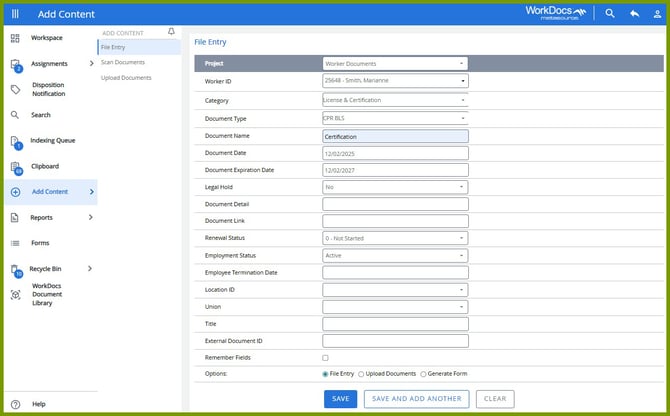
When you select the File Entry option in Add Content, the File Entry form opens. Select Worker Documents as the project and select the Worker ID for the worker to which this file is associated. Then complete any other fields for this file. Select the appropriate Option.
- File Entry – If you select File Entry, you are creating the metadata container for the document but not actually uploading the document. When this is selected, you can later go to the document viewer for this file and add the document at that time.
- Upload Documents – If you select Upload Documents, the option to upload a document is displayed at the bottom of the page. This creates the file as well as uploading the document at the same time.
Select **Save** to save the information and leave this page. If you have additional files or documents to add, select **Save and Add Another** to remain on this page to add another record.
#### **Upload Documents**
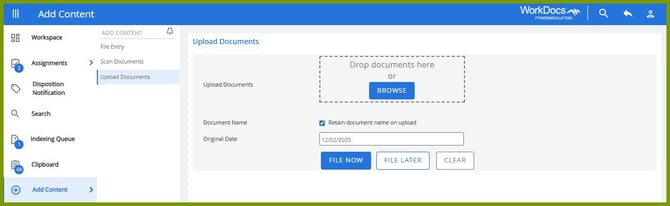
When you select the **Upload Documents** option in Add Content, the Upload Documents form opens. You can drag and drop the document or select **Browse** to locate the document.
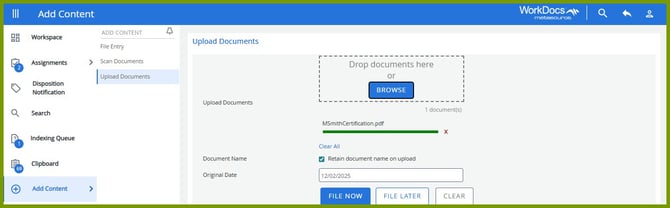
Once the document is uploaded, determine whether you want to add the file information now or later. If you select Clear, the document is removed from this page, and you can start again.
- File Now – If you select **File Now**, next you’ll be asked to add the metadata for the file.
- File Later – If you select **File Later**, the document is uploaded and placed in the Indexing Queue. You can access the Indexing Queue later to add the file information.
- [Getting Started](https://knowledgebase.metasource.com/workdocs/getting-started?hsLang=en-us)
- [Taking Action](https://knowledgebase.metasource.com/workdocs/taking-action?hsLang=en-us)
- [Using Features](https://knowledgebase.metasource.com/workdocs/using-features?hsLang=en-us)
- [Reports](https://knowledgebase.metasource.com/workdocs/reports?hsLang=en-us)
[](https://www.metasource.com/)
[getsupport@metasource.com](mailto:getsupport@metasource.com)
[(888) 634-7684](tel:18886347684)
© 2025 MetaSource, LLC. All rights reserved.