
Single sign-on is used to log in which gives users easy access to the WorkDocs™ platform. Once logged into your company’s system, just open WorkDocs. Typically, users land on the Project Search Criteria page.
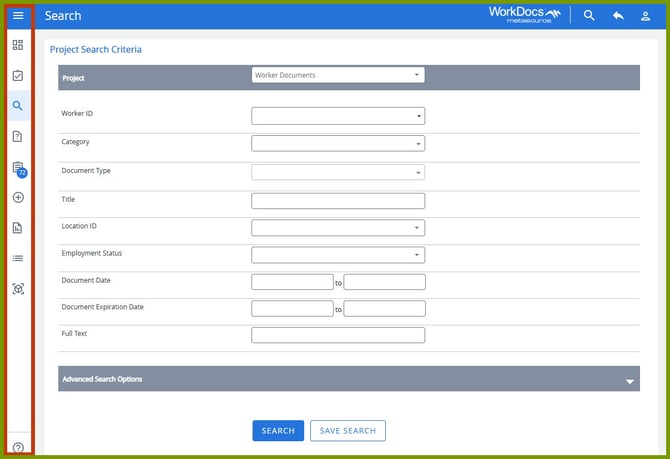
On the left side of the page is the Navigation Menu which allows you to move between the available options.
At the top of the menu, the three lines with the blue background allow you to expand the navigation icons to see a text label.
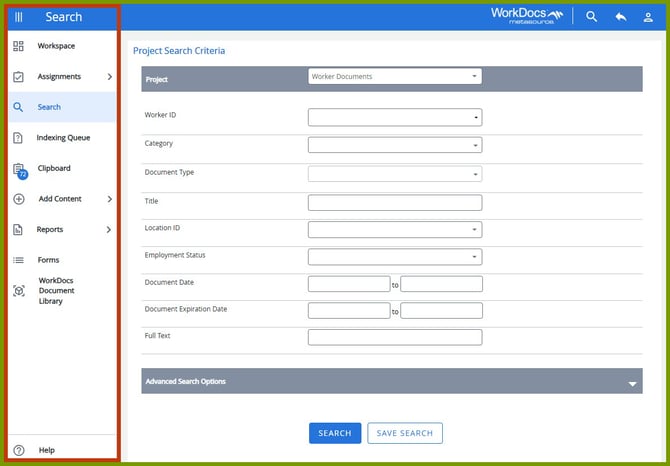
To collapse the expanded menu, click the three vertical lines.
The options in the Navigation Menu depend on the user’s individual access permissions and may include:
- Workspace – Setup a custom workspace that supports how you use the application. For more information, refer to the Workspace (link).
- Assignments – View a list of items that are assigned to you and may need your attention. For more information, refer to the Assignments (link).
- Search – Search for a worker document. For more information, refer to the Project Search.
- Indexing Queue – The Indexing Queue provides an area for documents that have not been indexed or associated with an existing file to be temporarily stored until indexing is completed.
- Using the Clipboard – The Clipboard is an area where you can compile, gather, and place files of similar interest. Each user has their own Clipboard for each project. Files added to your Clipboard are simply pointers to the original file.
- Add Content – Add worker documents to WorkDocs. For more information, refer to the Content (link).
- Reports – Run a report to review information and trends with worker documents. For more information, refer to the Reports (link).
- Forms – Start a Company Notice, Leave of Absence, or Legal Hold. For more information, refer to the Taking Action.
- WorkDocs Document Library – Review end-user documentation on how to use WorkDocs. For more information, refer to the WorkDocs Document Library (link).
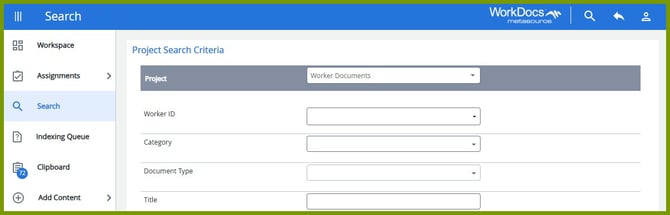
The icons on the top right are:
- Search – Used to do a global search across all WorkDocs projects. A System Administrator determines what content is searched during a global search.
- Last – Returns you to the last search results page.
- User – Provides access to Preferences, Saved Searches, and Logout.