---
title: Assignments
description: Discuss this process.
---
[Skip to content](https://knowledgebase.metasource.com/workdocs/assignments#main-content)
[](https://www.metasource.com/)
Open main navigation
Close main navigation
- [Return to WorkDocs™](https://sourcehr.filebound.com/LogOn.aspx)
[Return to WorkDocs™](https://sourcehr.filebound.com/LogOn.aspx)
Hello. How can we help you?
- There are no suggestions because the search field is empty.
1. [WorkDocs Customer Knowledge Center](https://knowledgebase.metasource.com/workdocs?hsLang=en-us)
2. [Using Features](https://knowledgebase.metasource.com/workdocs/using-features?hsLang=en-us)
December 29, 2025
# Assignments
The **Assignments** page provides a list of items that need action from the user. Through the WorkDocs™ workflow process, documents that need attention are assigned to appropriate users. Additionally, other users may assign you an item. You can see your assignments by accessing the **Assignments** page.
**Reviewing Assignments**
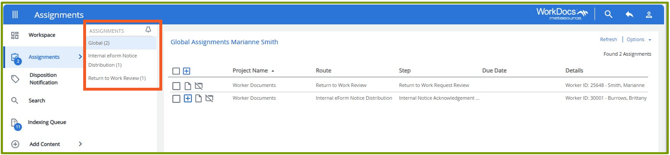
The middle column on **Assignments** groups your tasks based on the workflow process. The first group, **Global**, is a list of all your assignments and it includes the total number. The additional groups break down the total list into groups based on the workflow process that triggered the assignment.
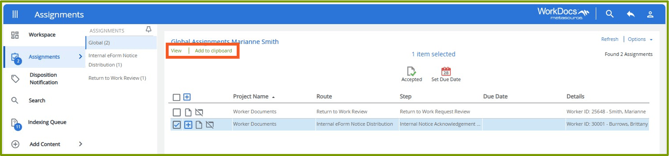
You can act on your assignments from the list. In this example, the task selected is an Internal Notice Acknowledgement. Once selected, you can click **View** to open it in the document viewer where you’ll be able to review the document and act on it from there. You can also move the assignment to your Clipboard if you want to act on it later.
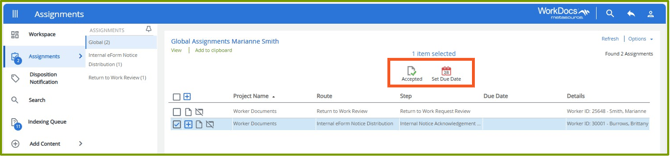
Depending on the task, you may have the option to act on it from the Assignments list. Notice the options, **Accepted** and **Set Due Date**. You can accept the Internal Notice by clicking Accepted here. You can also click **Set Due Date** to set a date that this task must be completed.
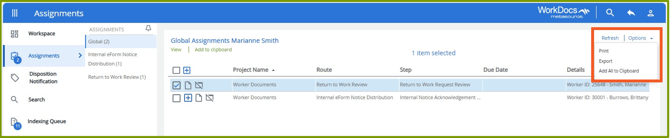
The Options menu can be used to Print, Export, or add all the items on the list to your [Clipboard](https://knowledgebase.metasource.com/workdocs/clipboard?hsLang=en-us).
- [Getting Started](https://knowledgebase.metasource.com/workdocs/getting-started?hsLang=en-us)
- [Taking Action](https://knowledgebase.metasource.com/workdocs/taking-action?hsLang=en-us)
- [Using Features](https://knowledgebase.metasource.com/workdocs/using-features?hsLang=en-us)
- [Reports](https://knowledgebase.metasource.com/workdocs/reports?hsLang=en-us)
[](https://www.metasource.com/)
[getsupport@metasource.com](mailto:getsupport@metasource.com)
[(888) 634-7684](tel:18886347684)
© 2025 MetaSource, LLC. All rights reserved.