---
title: Expiration Alerts
description: Discuss this process.
---
[Skip to content](https://knowledgebase.metasource.com/workdocs/expiration-alerts#main-content)
[](https://www.metasource.com/)
Open main navigation
Close main navigation
- [Return to WorkDocs™](https://sourcehr.filebound.com/LogOn.aspx)
[Return to WorkDocs™](https://sourcehr.filebound.com/LogOn.aspx)
Hello. How can we help you?
- There are no suggestions because the search field is empty.
1. [WorkDocs Customer Knowledge Center](https://knowledgebase.metasource.com/workdocs?hsLang=en-us)
2. [Taking Action](https://knowledgebase.metasource.com/workdocs/taking-action?hsLang=en-us)
November 24, 2025
# Expiration Alerts
During a customer’s initial set-up process, all the documents that are needed for workers are defined based on specific organizational criteria such as department, role, employment type, location, or work arrangement (remote or onsite). For documents that require periodic renewal, the system automatically calculates the next renewal date based on the organization’s defined expiration policy for that document type. This ensures that time-sensitive records, such as certifications or licenses, are continuously monitored and kept current.
WorkDocs automatically identifies documents on a worker’s record that are nearing the expiration (renewal) date and triggers an expiration alert. In this way, WorkDocs helps you by identifying the documents that need to be renewed without someone having to go through each worker file.
The expiration alert automatically sends an email to the worker advising them that a document is expiring and needs to be renewed.
#### **Uploading Renewal Documents from an Email Notification**
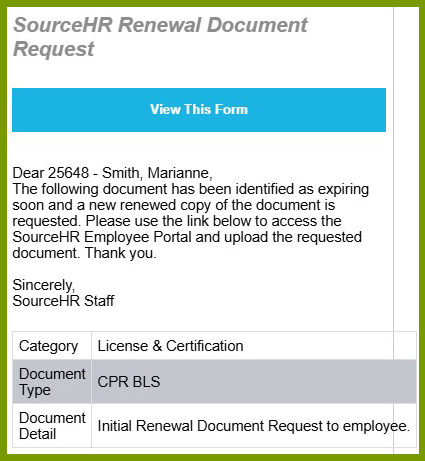
The above dialogue box is included in the email sent to the worker. When the renewal document is ready to be uploaded, the worker clicks **View This Form** from the email.
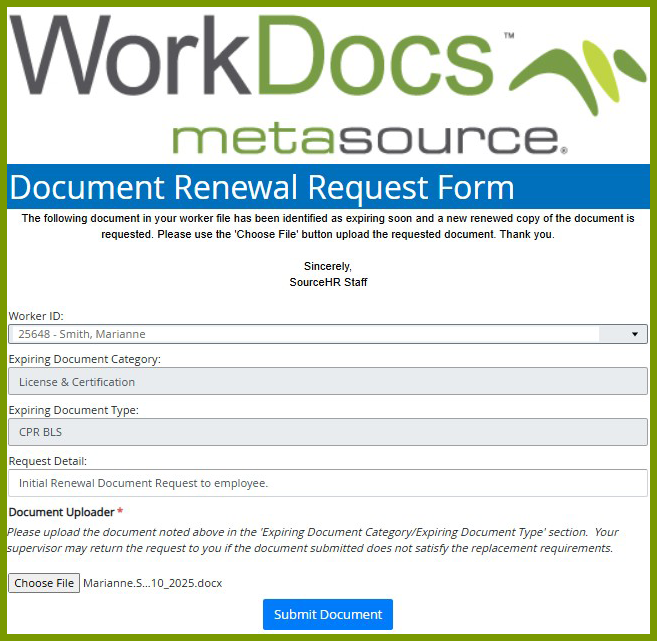
The **Document Renewal Request Form** opens with all the expired document information pre-filled. These fields can’t be changed by the worker. The only action the user can take is to select **Choose File** in the Document Uploader. The user selects the renewal document file to be uploaded. Once uploaded, the user clicks **Submit Document**. This form can’t be submitted unless a document is attached.
#### **Reviewing the Uploaded Document**
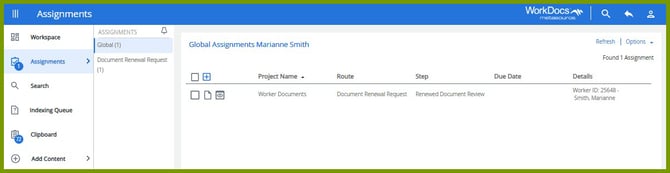
Once the file is uploaded, the designated user receives an email notification letting them know the document is ready to be reviewed. The user can click the link from the email to review the document or the document that needs to be reviewed can be found as a task on the **Assignments** page. This screen shows the document on the Assignments page.
To view a single document, the user can click the **View **icon next to the checkbox. Multiple documents can be selected by clicking the checkboxes preceding the documents. Once a checkbox is selected, additional options are displayed above the table. Click the **View** option to move to the document viewer.
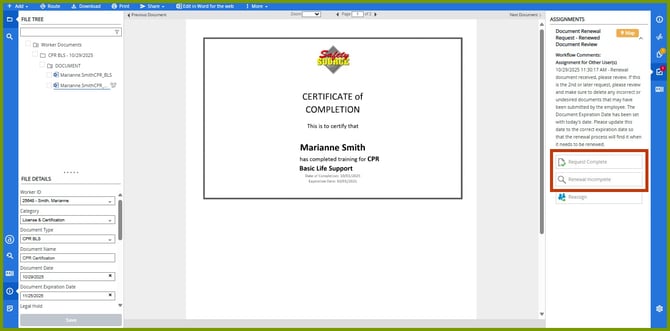
The user reviews the document.
- If it is correct, click **Request Complete**. The document is moved to the Worker Documents project and the document date is set to the current date and a new renewal date is calculated. After the panel closes, you can refresh your browser to view the stored document in the Worker Documents project. If you have appropriate system access, you can update the document details here, if needed.
- If it is incorrect, click **Renewal Incomplete**. You can enter some notes to explain to the worker why the document is not correct. These notes are displayed in the Request Notes field. This sends it back to the worker to request the document again.
- [Getting Started](https://knowledgebase.metasource.com/workdocs/getting-started?hsLang=en-us)
- [Taking Action](https://knowledgebase.metasource.com/workdocs/taking-action?hsLang=en-us)
- [Using Features](https://knowledgebase.metasource.com/workdocs/using-features?hsLang=en-us)
- [Reports](https://knowledgebase.metasource.com/workdocs/reports?hsLang=en-us)
[](https://www.metasource.com/)
[getsupport@metasource.com](mailto:getsupport@metasource.com)
[(888) 634-7684](tel:18886347684)
© 2025 MetaSource, LLC. All rights reserved.