
WorkDocs gives you the ability to export items from a list to an Excel spreadsheet. This action pulls the list of items into the spreadsheet but does not bring in the actual documents. When a list is copied to a spreadsheet as an XLSX file, the user can work with the list using the features of Excel. If it is copied to a spreadsheet as a CSV file, it can be opened in any text editor in Windows.
Let’s look at the process.
Search Results
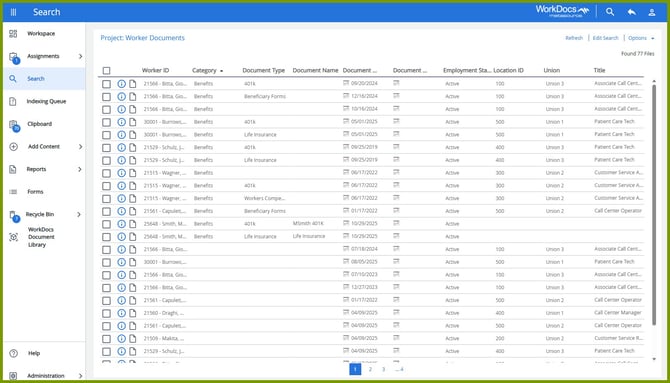
In this example, the search is for all Worker Documents. However, the search could have been done for other situations or an individual worker. Also, you can export a list from other menu results such as Assignments.
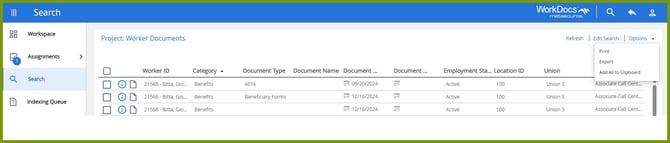
From the Options menu on the top right, select Export. The Export List window opens.
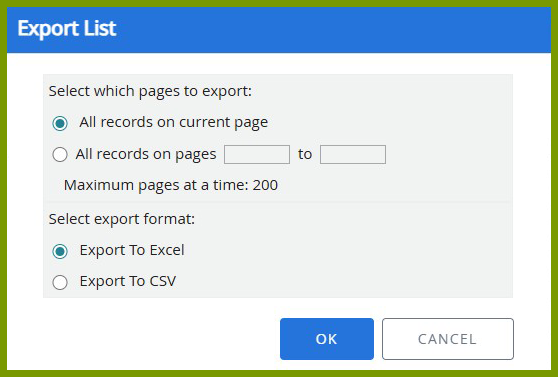
Select which records you want to export and select the export format, Excel or CSV. Select OK.
If you choose Export to Excel, an XLSX file is saved to your Downloads folder. If you choose Export to CSV, a CSV file is saved to your Downloads folder. An XLSX file can only be opened in Microsoft Excel. A CSV file can be opened with any text editor in Windows.