
When a worker is going on a leave of absence (LOA), WorkDocs is used to initiate the LOA process. An on-line form is completed, and the type of leave and the length of the leave are selected. When a LOA is initiated, the status of the leave is Pending. The request is assigned to the designated user who reviews the request and can approve it or request documentation.
Once the LOA is approved, the status of the leave is LOA Granted.
When the worker is ready to return to work, the return-to-work process is completed in WorkDocs.
Let’s look at a leave of absence for jury duty.
Submitting a Leave of Absence Request – Jury Duty
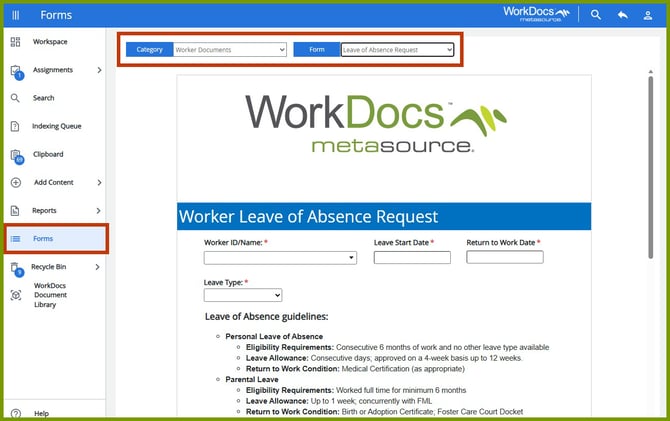
Leaves of Absence are submitted from Form s on the Navigation menu. Select the Category, Worker Documents and the Form, Leave of Absence Request. The Worker Leave of Absence Request form is displayed.

In the Worker ID/Name field, search for the worker who is going on the LOA, then enter the Leave Start Date and Return to Work Date. In the future, if the dates change, designated users can update the dates.
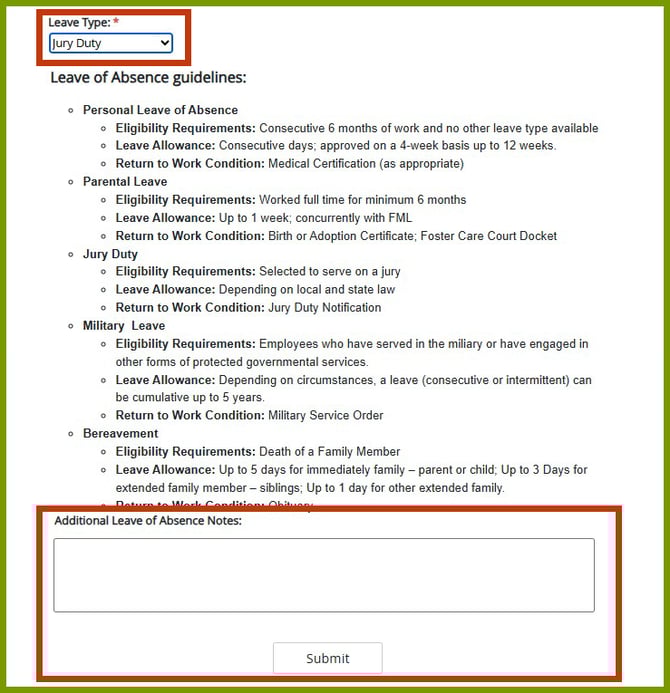
elect the Leave Type; in this scenario, Jury Duty. The types of LOA available in the drop down may vary based on the types of leaves available to workers in your company.
You have the option to include any additional information necessary in the Additional Leave of Absence Notes field. Once the information on the request is complete, click Submit.
A success message is displayed, and the LOA is placed in the Leave of Absence Request Review step.
Reviewing a Leave of Absence Request

Leave requests are assigned to designated users who must review the request. The request is displayed on the user’s Assignments page. To view the request, the user clicks the View  icon next to the checkbox for the request. This opens the document viewer.
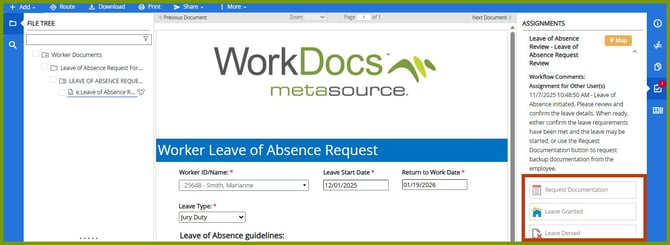
The user reviews the request. There are three actions that can be taken, Request Documentation, Leave Granted, Leave Denied.
Request Documentation
If you need further documentation from the worker such as the Jury Summons they received, select Request Documentation to ask the worker to upload the summons.
- The worker receives an email with a link that lets the worker upload the documentation.
- Once the document is uploaded, the designated user is assigned the Leave of Absence Backup Review. Once reviewed, the user selects Review Complete. A checklist dialog box displays so the user can indicate that the Category, Type, and Date are set.
- The user returns to the Leave of Absence Request Review item in Assignments where the LOA can be granted or denied.
Grant Leave of Absence
If no further documentation is needed and you’re ready to approve the LOA, select Leave Granted. A checklist dialog box displays where the user is reminded to verify that all the documentation is received and that the return to work date is correct.
Deny Leave of Absence
If the leave will not be approved, select Leave Denied.
Submitting a Return to Work Request – Jury Duty
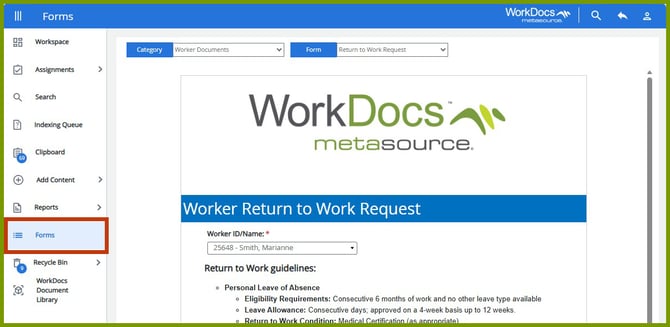
Return to work requests are submitted from Form s on the Navigation menu. Select the Category, Worker Documents and the Form, Return to Work Request. The Worker Return to Work Request form is displayed.
Search for the worker in the Worker field and click Submit. You have the option to include any additional information necessary in the Additional Return to Work Notes field. Once the information on the request is complete, click Submit.
A success message is displayed and the LOA is placed in the Return to Work Request Review step.
Reviewing a Return to Work Request

Return to Work requests are assigned to designated users who must review the request. The request is displayed on the user’s Assignments page. To view the request, the user clicks the View icon next to the checkbox for the request. This opens the document viewer.
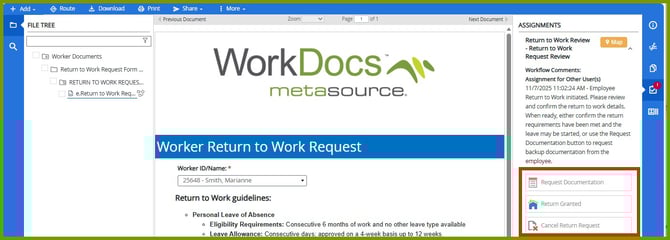
The user reviews the request. There are three actions that can be taken, Request Documentation, Return Granted, Cancel Return Request.
Request Documentation
If you need further documentation from the worker, select Request Documentation to ask the worker to upload the documentation.
- The worker receives an email with a link that lets the worker upload the documentation.
- Once the document is uploaded, the designated user is assigned the Return to Work Backup Review. Once reviewed, the user selects Review Complete. A checklist dialog box displays so the user can indicate that the Category, Type, and Date are set.
- The user returns to the Return to Work Request Review item in Assignments where the Return to Work can be granted or cancelled.
Grant Return to Work
If no further documentation is needed and you’re ready to approve the return, select Return Granted. A checklist dialog box displays where the user is reminded to verify that all the documentation is received.
Cancel Return Request
If the return needs to be cancelled, select Cancel Return Request.