
The Internal Company Notices feature allows you to send a notification to one worker or a group of workers. The notification includes a link to a document that the recipient(s) must review. It also includes a form that the recipient(s) must sign electronically to certify that they received and reviewed the information.
The signed form is stored in WorkDocs along with the worker’s other documents.
Submitting an Internal Company Notice
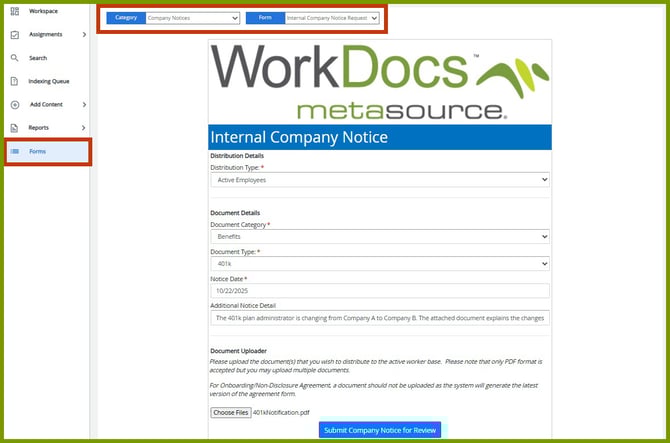
Internal Company Notices are submitted from Form s on the Navigation menu. Select the Category, Company Notices and the Form, Internal Company Notice Request. The Internal Company Notice form is displayed.
Complete the Distribution Details and Document Details:
- Select the Distribution Type. This identifies which workers should receive this notice. Depending on your company’s set-up, the options may include Active Workers, Individual Worker, Type of Worker, etc. Depending on which option you select, additional fields may be added. For example, if you selected Individual Worker, a field is displayed to select the worker.
- Select the Document Category. The options available depend on your company’s set-up. The category indicates the general grouping for this company notice, such as, benefits, onboarding, termination, performance, etc.
- Select the Document Type. The options available depend on the Document Category selected. It provides a more specific identification for the company notice.
- Select the Notice Date. This is the date you want the notification to be sent to the workers.
- Add Additional Notice Detail to further explain the notification.
- In the Document Uploader, select Choose File and locate and upload the file that needs to be included in the notification. You must upload a file to complete an Internal Company Notice.
Once the file is uploaded, click Submit Company Notice for Review.

A success message is displayed. The next step is for the Company Notice to be reviewed and distributed.
Reviewing and Distributing an Internal Company Notice
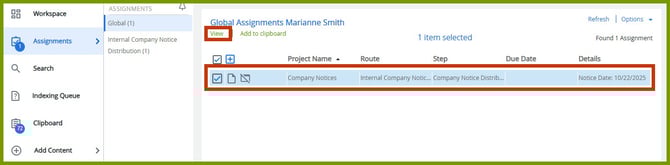
Once the Internal Company Notice is submitted, the user who is designated to review and di stribute it is assigned a task. Check your Assignments page for this type of task. Select the checkbox preceding it and click View. The Document Viewer opens.

Review the Internal Company Notice. Look at the File Details on the bottom left. You can make changes to the metadata if needed. Once the review is complete, click Distribute. All workers included in the notification will receive an email.
Worker Reviews and Signs the Internal Company Notice
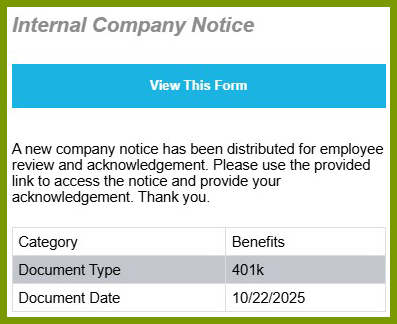
The email notification has a link to the form. Click View This Form to open it.

The worker must click the Notice Link to review the document attached to the Internal Company Notice. Once reviewed, the worker must click the checkbox to certify that they have reviewed the notice. Then the worker uses the mouse to sign the notice in the Please Sign Below area and clicks Submit.
Reviewing and Accepting an Internal Company Notice Response
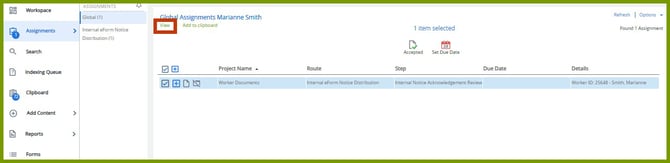
The user who is designated to review the worker’s submission is assigned the task. Check your Assignments page for this type of task. Select the checkbox preceding it and click View. The Document Viewer opens.
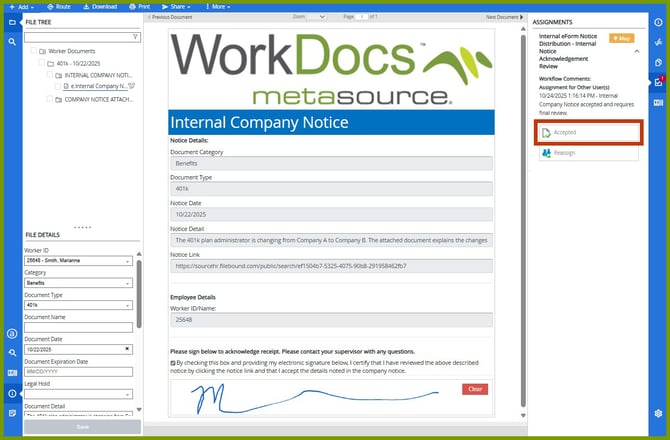
You can review the worker’s submission and make changes to the metadata in File Details, if needed. Once the review is complete, the user clicks Accepted.

The Internal Company Notice is saved with the worker’s other documents.