
It is sometimes necessary to preserve a worker's documents because of pending litigation, investigation, or regulatory review. In those instances, WorkDocs provides an easy way to take a snapshot of the documents and protect them from deletion. When a Legal Hold is submitted in WorkDocs, a copy of all the worker's documents is made and placed in the Legal Hold project.
Legal Hold captures documents at a point in time. It will not be updated if new documents are added to the worker record or updated versions of existing documents are added after the date the Legal Hold was submitted. You would need to submit a new Legal Hold on a worker to preserve the new documents.
Once it is no longer necessary to preserve the documents, it is easy to remove the Legal Hold.
Submitting a Legal Hold
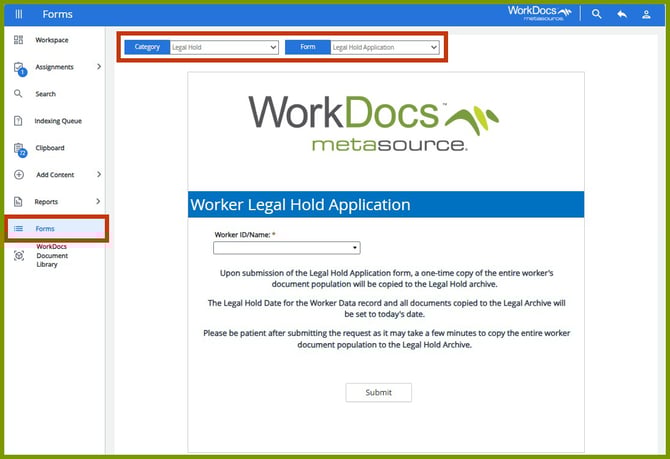
Legal Holds are submitted from Forms on the Navigation menu. Select the Category, Legal Hold and the Form, Legal Hold Application. The Worker Legal Hold Application form is displayed.
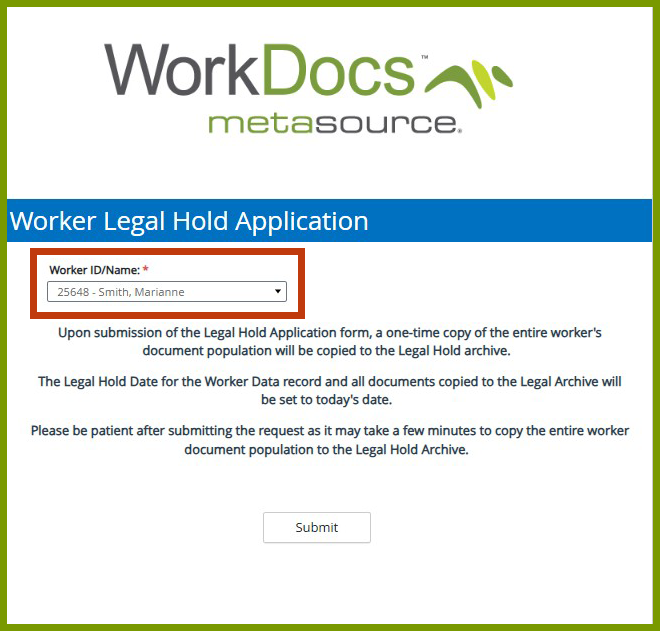
In the Worker ID/Name field, search for the worker that needs a Legal Hold, and click Submit.

Once the worker's documents have been copied to the Legal Hold project, a success message is displayed. The worker's record will show that a legal hold has been placed on those documents. Let’s see what that looks like in WorkDocs.
Viewing a Legal Hold
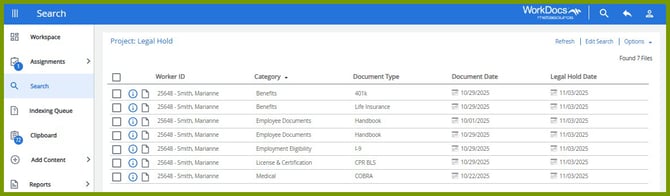
When searching in the Legal Hold project, the worker's documents that have a Legal Hold are displayed.
Downloading Legal Hold Documents
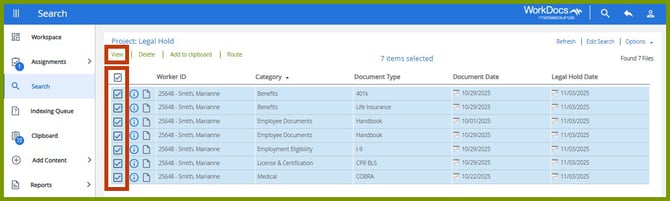
You can download the documents so they can be sent to an interested person by selecting the checkboxes preceding the documents and selecting View to move to the document viewer.
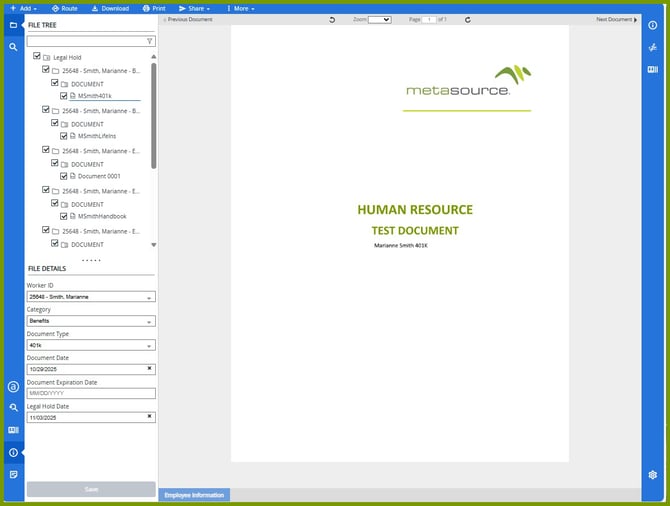
Once the File Tree is expanded, select the checkbox preceding the first item, in this case, Employee Documents. This selects all the items on the list.
Select Download. The documents are zipped and placed in your computer’s Download folder with the name, Documents (1).zip. You can take the file and move it to another folder, email it, etc.
For more information on downloading documents, refer to the Bulk Downloading of Documents topic.
Removing a Legal Hold

When it’s time to remove the Legal Hold, access Forms on the Navigation menu. Select the Category, Legal Hold and the Form, Legal Hold Removal. The Worker Legal Hold Removal form is displayed.
Search for the worker in the Employee field and click Submit. A success message is displayed. The worker documents that were on Legal Hold are removed from the Legal Hold project.