---
title: Missing Worker Documents
description: Discuss this process.
---
[Skip to content](https://knowledgebase.metasource.com/workdocs/missing-worker-documents#main-content)
[](https://www.metasource.com/)
Open main navigation
Close main navigation
- [Return to WorkDocs™](https://sourcehr.filebound.com/LogOn.aspx)
[Return to WorkDocs™](https://sourcehr.filebound.com/LogOn.aspx)
Hello. How can we help you?
- There are no suggestions because the search field is empty.
1. [WorkDocs Customer Knowledge Center](https://knowledgebase.metasource.com/workdocs?hsLang=en-us)
2. [Taking Action](https://knowledgebase.metasource.com/workdocs/taking-action?hsLang=en-us)
November 12, 2025
# Missing Worker Documents
During a customer’s initial set-up process, all the documents that are needed for workers are defined. The list of documents needed for each worker may be unique. It is based on various factors such as their location and title. WorkDocs automatically identifies documents on worker records that are missing and places them in the Missing Worker Documents list. In this way, WorkDocs helps you by identifying the needed documents without someone having to go through each worker file.
Once a missing document is identified by WorkDocs, a request can be sent to obtain it. The request may be automatically sent or a manual request can be sent.
- Automatic Requests – When the requests are automatically sent, WorkDocs generates a request to the designated user to get the document from the worker. A designated user may be the worker or someone else.
- Manual Requests – Missing documents can be manually found by going to the Missing Worker Documents list and triggering the request.
Either case results in the designated user receiving an email notification asking for the missing document.
### Searching for Missing Worker Documents
If you have appropriate system access, you can see the **Missing Worker Documents** option on the **Project** drop-down on the Project Search page. Additional system access allows you to act on the missing document by requesting it from the worker and, once the worker has uploaded the document, reviewing and marking it as complete. This moves the record out of the missing list and into the Worker Documents project.
Locate missing documents from the **Search** page using the **Project**, **Missing Worker Documents**.
**Note:** If Automatic Requests are used, you do not need to search for them.
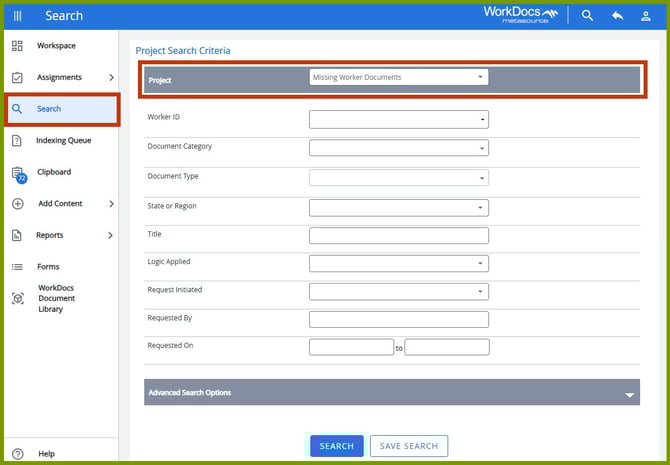
Use the search fields to narrow the results and select **Search**. Or, if you want a complete list of missing documents, leave the search fields blank and select **Search**.
Refer to the [Project Search](https://knowledgebase.metasource.com/workdocs/project-search?hsLang=en-us)topic for an explanation of all the search fields.
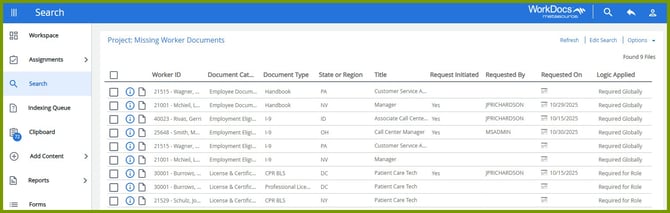
Once you click **Search**, the results display in a table with columns that correspond with the search fields. Click the checkbox preceding the missing document to select it. Once a document is selected from the list, additional options display at the top of the page.
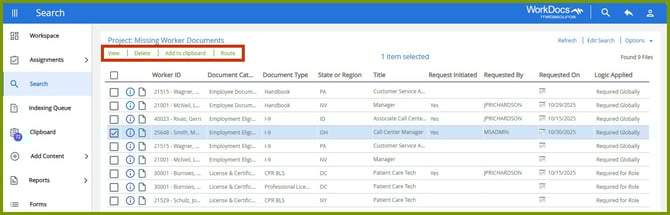
The options that display depend on your system access permissions. To manually request a missing document, click **Route**.
Refer to the [Project Search](https://knowledgebase.metasource.com/workdocs/project-search?hsLang=en-us)topic for an explanation of these options.
### Requesting Missing Worker Documents Manually
The **Missing Worker Documents** project allows users with appropriate system access to request a missing document. The designated user receives an email asking for the missing document and can upload the missing document using a link from the email. Then, the designated user is assigned the document to review. Here’s the manual process:
**Note:** If Automatic Requests are used, you do not need to manually request it.
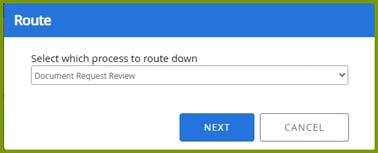
From the missing document search results screen, select one or more checkboxes for the documents you want to request. Select **Route** and select **Document Request Review** from the Route dialogue box. Then click **Next**.
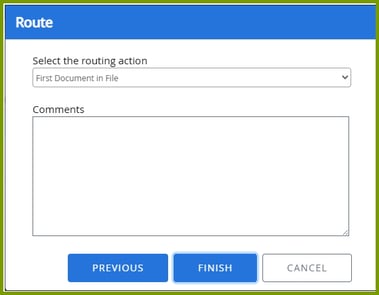
To complete the request, click **Finish**. The designated user receives an email notification requesting the missing document. A separate email is sent for each missing document selected.
**Note:** If Automatic Requests are used, the email notification is automatically sent.
### Uploading Missing Documents from Email Notification
The email sent to the designated user requesting the missing document is the same for both automatic and manual requests.
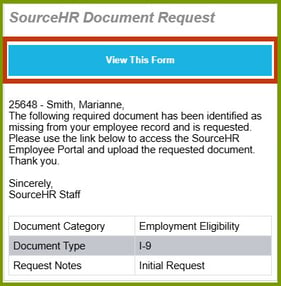
The above dialogue box is included in the email sent to the designated user. When the missing document is ready to be uploaded, the designated user clicks **View This Form** from the email.
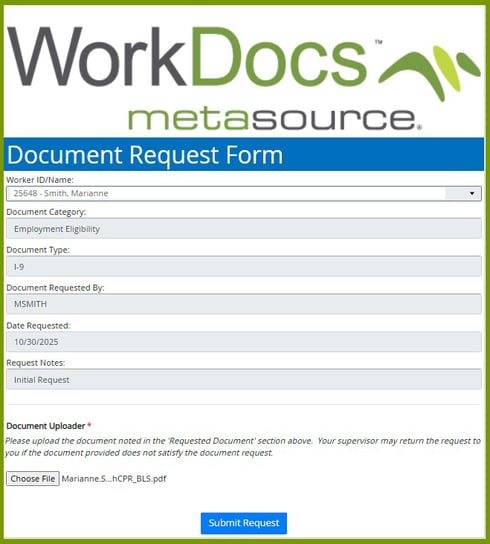
The **Document Request Form** opens with all the missing document information pre-filled. These fields can’t be changed by the designated user. The only action the user can take is to select **Choose File** in the Document Uploader. The user selects the file to be uploaded. Once uploaded, the user clicks **Save**. This form can’t be submitted unless a document is attached.
### Reviewing the Uploaded Document
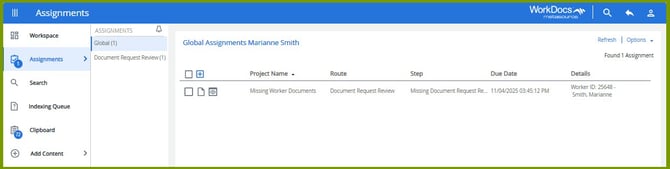
Once the file is uploaded, the designated user receives an email notification letting them know the document is ready to be reviewed. The user can click the link from the email to review the document but is required to login to WorkDocs. The task is also placed on the user’s **Assignments** page in WorkDocs.
To view a single document, the user can click the **View**  icon next to the checkbox. Multiple documents can be selected by clicking the checkboxes. Once a checkbox is selected, additional options display above the table. Click **View** to move to the document viewer.
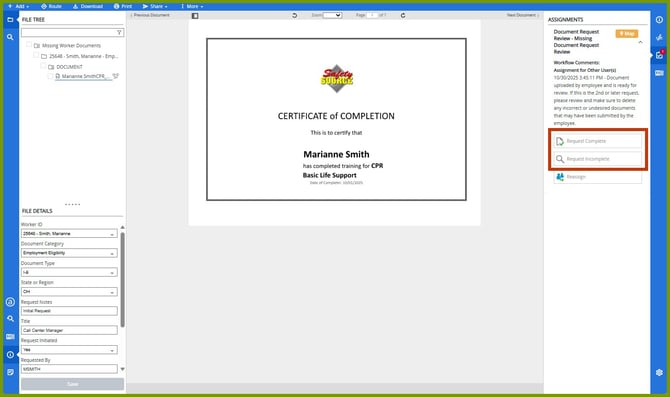
The user reviews the document.
- If it is correct, click **Request Complete**. The document is moved to the Worker Documents project and the document date is set to the current date. After the panel closes, you can refresh your browser to view the stored document in the Worker Documents project. If you have appropriate system access, you can update the document details here, if needed.
- If it is incorrect, click **Request Incomplete**. You can enter some notes to explain to the worker why the document is not correct. These notes display in the Request Notes field. This sends it back to the worker to request the document again.
- [Getting Started](https://knowledgebase.metasource.com/workdocs/getting-started?hsLang=en-us)
- [Taking Action](https://knowledgebase.metasource.com/workdocs/taking-action?hsLang=en-us)
- [Using Features](https://knowledgebase.metasource.com/workdocs/using-features?hsLang=en-us)
- [Reports](https://knowledgebase.metasource.com/workdocs/reports?hsLang=en-us)
[](https://www.metasource.com/)
[getsupport@metasource.com](mailto:getsupport@metasource.com)
[(888) 634-7684](tel:18886347684)
© 2025 MetaSource, LLC. All rights reserved.