---
title: Project Search
description: Discuss this process.
---
[Skip to content](https://knowledgebase.metasource.com/workdocs/project-search#main-content)
[](https://www.metasource.com/)
Open main navigation
Close main navigation
- [Return to WorkDocs™](https://sourcehr.filebound.com/LogOn.aspx)
[Return to WorkDocs™](https://sourcehr.filebound.com/LogOn.aspx)
Hello. How can we help you?
- There are no suggestions because the search field is empty.
1. [WorkDocs Customer Knowledge Center](https://knowledgebase.metasource.com/workdocs?hsLang=en-us)
2. [Taking Action](https://knowledgebase.metasource.com/workdocs/taking-action?hsLang=en-us)
November 12, 2025
# Project Search
The **WorkDocs Project Search** page is used to search for information. When the WorkDocs worker data is populated from your company’s Human Resource Information System (HRIS), it is organized into several Projects. Projects are data storage tables that group information which can then be retrieved. When you want to search, you’ll pick the appropriate Project. Choose the Project, **Worker Documents**, when you want to find a document for a specific worker or group of workers.
### WorkDocs Projects
Depending on your system access permissions, the list of Projects may vary.
The following Projects may be available when you search for documents in WorkDocs.
- **Company Notices** – This project stores all company notices that have been added to WorkDocs. Use this Project when you want to find a Company Notice. For more information, refer to the Company Notices (link)topic.
- **Departments** – This project stores a list of all the organizational structures within your company. The project may have a different name depending on the customer. It may be called Business Units, Organizations, Divisions, etc. For a complete list of departments for your company, leave the field blank and select **Search**.
- **Document Types** – This project stores a list of Document Categories and Document Types along with the document’s requirement details such as, All Workers, State or Region, or Role. It also includes whether the document needs to be renewed and the length of time before it must be renewed. These details and parameters are unique to each company and are established during your company’s implementation.
- **Legal Hold** – This project stores a snapshot of a worker's documents when a legal hold has been applied. Legal holds are managed within WorkDocs. For more information, refer to the [Legal Holds](https://knowledgebase.metasource.com/workdocs/legal-holds?hsLang=en-us) topic.
- **Missing Worker Documents** – This project stores a list of required documents that are missing from an worker's record. From this project, designated users can kick-off the process to request the missing document from the worker. For more information, refer to the [Missing Worker Documents](https://knowledgebase.metasource.com/workdocs/missing-worker-documents?hsLang=en-us) topic.
- **Worker Acknowledgements** – This project stores all acknowledgements that were sent to workers in WorkDocs. Use this Project when you want to find messages that were sent to individual workers that required that they sign the message to confirm they received it. For more information refer to the Worker Acknowledgements (link) topic.
- **Worker Data**– This project stores worker demographic data such as, name, location, supervisor name, worker title, worker email address and status. This information is derived from your HRIS system. If you use this Project to search, the results display the demographic data for the workers that are included in the search criteria. Although you can view it here, the demographic information is managed in your company’s HRIS system.
- **Worker Documents** – This project stores worker documents and related information including, Worker ID and Name, Category, Document Type, Document Date, and Document Expiration Date. This is the Project you will usually use when searching for documents.
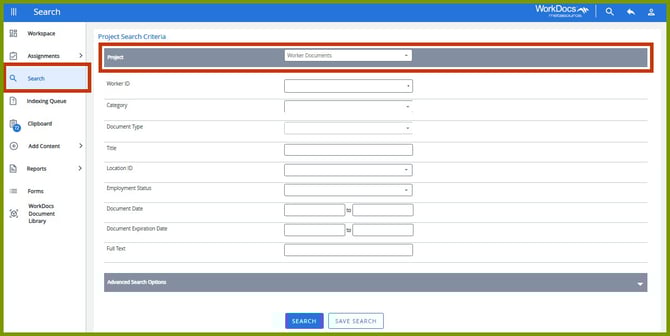
Select the **Project** in which you want to search. Use the search fields to narrow the results and select **Search**. Or, if you want a complete list of all results in the Project, leave the search fields blank and select **Search**.
### Project Search Field Definitions
Below are the definitions for each search field and the projects to which they apply. All search fields are optional. You can use one or more search fields or leave them all blank.
**Note:**This list is in alphabetical order. It is not necessarily the order the fields display on the search page.
| **Field** | **Projects** | **Definition** |
| --- | --- | --- |
| Date Created | Legal Hold | Search for all legal holds that were created on a specific date. You can search for a specific date or a date range\*. |
| Department | - Company Notices - Departments - Worker Data | Search based on a specific Department within your company. This label may have a different name such as Business Unit, Organization, Division, etc. |
| Distribution Type | Company Notices | Search for a company notice based on the type of distribution that was used such as, Individual Worker, State Workers, Type of Worker. |
| Document Category / Category | - Company Notices - Document Types - Legal Hold - Missing Worker Documents - Worker Documents | Search for a specific group of documents. Select a Category from the list to narrow your search results. Once you select a Document Category, you can select an appropriate Document Type for that category. |
| Document Date | - Legal Hold - Worker Documents | Search based on the document date. You can search for a specific date or a date range\*. |
| Document Expiration Date | Worker Documents | Search based on the date the document expires. You can search for a specific date or a date range\*. |
| Document Type | - Company Notices - Document Types - Legal Hold - Missing Worker Documents - Worker Documents | If you select a Document Category, you can further narrow your search by selecting a Document Type. The list of types is based on the category selected. |
| Email Address | Worker Data | Search based on the worker's email address. |
| Employment Status | - Worker Data - Worker Documents | Search based on the status of the worker. Select: - **Active** – for workers currently employed by your company. - **Terminated** – for workers no longer employed by your company. - **Select All** – for both active and terminated workers. |
| File Notes | Company Notices | Search based on text entered in the File Notes panel in the Document Viewer. Type a word or phrase and it will be matched against the text in the File Notes panel. |
| First Name | Worker Data | Search based on the first name of the worker. |
| Full Text | Worker Documents | When documents are imported, WorkDocs captures all the text in the document. This field allows you to search and locate documents containing specific search terms. Search examples: - **Exact Value** – precede the single word with the tilde (~), e.g. ~Fox. - **Exact Phrase** – precede the phrase with the tilde and place the phrase in quotes (“”), e.g. ~”Large Brown Fox”. - **Value Beginning** – precede the single word with the tilde and place an asterisk (\*) at the end of the word. Place the word in quotes, e.g. ~”Fox\*”. It would match all words that begin with Fox. - **Phrase Beginning** – precede the phrase with the tilde and place an asterisk at the end of the phrase. Place the phrase in quotes, e.g. ~”Large Brown Fox\*”. It would match all phrases with any form of all three words. |
| Hire Date | Worker Data | Search based on the worker's hire date. You can search for a specific date or a date range\*. |
| Individual Worker | Company Notices | Search for specific worker records. Click the drop-down to see a list of workers. To narrow the list, begin typing the worker's ID or last name. |
| Last Name | Worker Data | Search based on the last name of the worker. |
| Legal Hold | Worker Data | Search based on whether the document has a legal hold on it. |
| Legal Hold Date | Legal Hold | Search based on the date the legal hold was established. You can search for a specific date or a date range\*. |
| Location ID | - Worker Data - Worker Documents | Search based on your company’s locations. Select one or more from the drop-down list. |
| Logic Applied | Missing Worker Documents | Search based on whether the document is Required Globally, Required for Role, and/or Required for State. You can select one or more of these options. |
| Notice Date | Company Notices | Search based on the date the company notice was created. You can search for a specific date or a date range\*. |
| Notice Detail | Company Notices | Search based on details in the company notice. |
| Renewal Policy | Document Types | Search based on whether the type of document requires it to be renewed periodically. The renewal period, 1, 2, or 3 Years. |
| Request Initiated | Missing Worker Documents | Search for a missing document based on whether a request has already been made to the Worker for the document. Select: - **Complete** – to search for missing documents that have been requested, received and reviewed/accepted. - **No** – to search for missing documents that have not been requested from the worker. - **Yes** – to search for missing documents that have been requested but not received and/or reviewed or accepted. |
| Requested By | Missing Worker Documents | Search based on the Username of the person who requested the missing document from the worker. Type the Username or a portion of it. The results will include all users with a username that meets that criteria. |
| Requested On | Missing Worker Documents | Search based on the date a missing document was requested from a worker. You can search for a specific date or a date range\*. |
| Required All Workers | Document Types | Search based on whether the type of document is required for all workers. |
| Required for State or Region | Document Type | Search based on whether the type of document is required for workers in certain States or Regions. |
| Required for Role | Document Type | Search based on whether the type of document is required for workers in certain Roles. |
| State | - Company Notices - Worker Data | Search based on the state or group of states. This narrows your search to only workers in the locations selected. Click the checkbox preceding the states you want to include in the search results. |
| State or Region | Missing Worker Documents | Search for missing documents based on the state or group of states. This narrows your search to only workers in the locations selected. Click the checkbox preceding the states you want included in the search results. |
| Title | - Missing Worker Documents - Worker Data - Worker Documents | Search based on the name of the worker's position. Type the title name or a portion of the name. The results will include all titles with the word or phrase. It is not necessary to use upper case when searching. |
| Worker ID | - Legal Hold - Missing Worker Documents - Worker Data - Worker Documents | Search for a specific worker record. Click the drop-down to see a list of workers. To narrow the list, begin typing the worker's ID or last name. |
| Worker Type | - Company Notices - Worker Data | Search based on the type of worker. Select: - **Hourly** – for workers paid by the hour. - **Salaried** – for workers paid a salary. - **Select All** – for both hourly and salaried workers. |
**\*Note:** When searching in a date field that includes two fields, you can search for a specific date or a date range.
- **Specific Date** – Include a date in the first field and enter the same date in the second field.
- **Date Range** – Include a date in the first field and a later date in the second field. You can also leave one of the fields blank. If you enter a date in the first field only, it searches from that date forward. If you enter a date in the second field only, it searches up to that date.
### Search Results
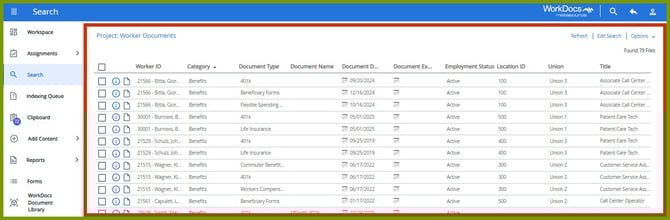
Once you click Search, the search results are displayed in a table with columns that correspond with the search fields. Click one or more checkboxes preceding the documents.
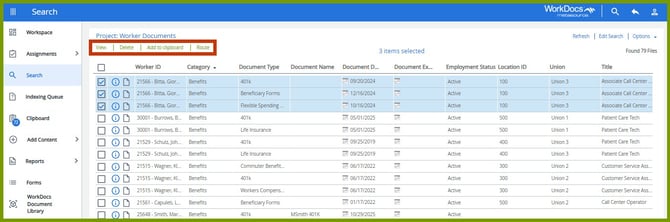
After the documents are selected from the list, additional options are displayed at the top of the page. The options that display depend on your system access permissions.
- **View** – Allows you to move to the document viewer page.
- **Delete** – Allows specific users to remove this document which places it in the recycle bin.
- **Add to clipboard** – Allows you to copy the document to your clipboard.
- **Route** – Allows you to take additional actions on this document.
Let’s see what happens when you select **View**.
### Document Viewer
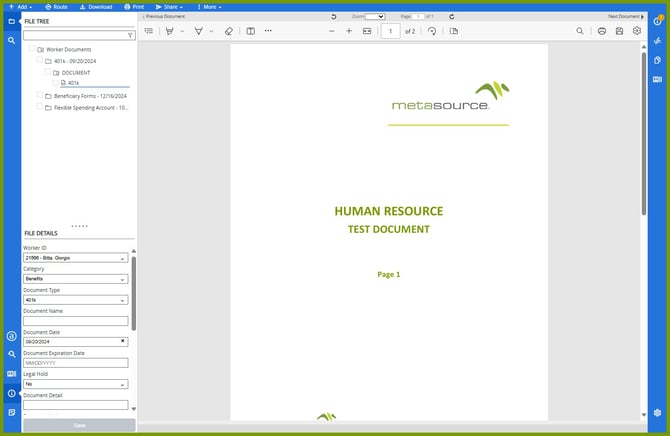
When you choose to view the documents you selected, the document viewer opens in a new window. The first document selected displays in the main window on the page. Let’s take a closer look at the document viewer and the options available.

At the top of the page is the file toolbar.
- **Add** – Upload or Scan documents from your computer or the network drive to the current file.
- **Route** – Choose a workflow for this document.
- **Download** – Export a copy of the document to your computer.
- **Print** – Send the document to a printer.
- **Share** – Select **Link** to create a URL to this document that can be copied and shared. Select **Email** to create and email with this document attached.
- **More** – Depending on your system access permissions, you may be able to delete this document.

The image toolbar allows you to use the Previous and Next Document options to move between multiple documents selected. You can also rotate the page to the right or left and zoom in or out on the document. If the document has more than one page, you can move between the pages.
On the left side of the document viewer is the navigation panel. There is a top section and bottom section. On the top are the File Tree and Search options.
##### File Tree
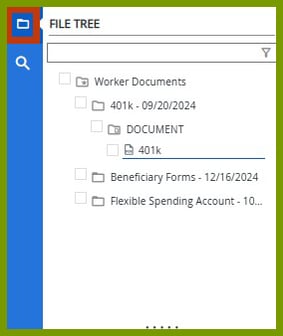
If you have opened multiple documents, the File Tree allows you to move between the documents selected. You can use the filter option to search for the document or open the files to locate the document and select the checkbox preceding it. The documents are displayed in a series of files with the document as the last point in the tree.
##### File Search
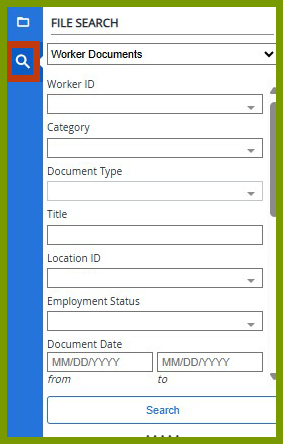
Allows you to do a new search from within the document viewer.
On the bottom, there are several options. It opens to the last option you selected.
##### Additional Fields
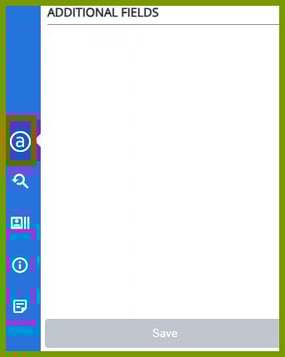
If there are additional metadata fields for this document, they are displayed in the Additional Fields section.
##### Tree Filter
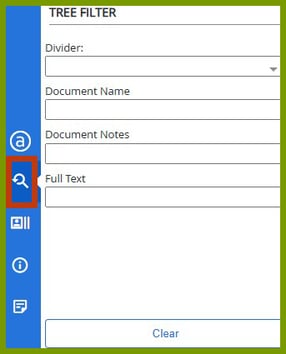
The Tree Filter allows you to narrow the results in the File Tree using the name of the document.
##### File Journal
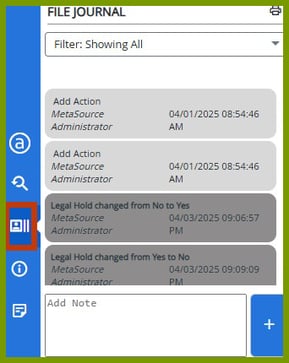
The File Journal displays an audit trail of changes, activities, and comments. You can filter by File Activities or File Comments, or you can select All.
##### File Details
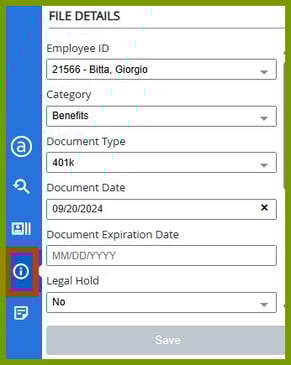
The File Details for the document selected are displayed.
Certain document details can be updated in this section.
##### File Notes
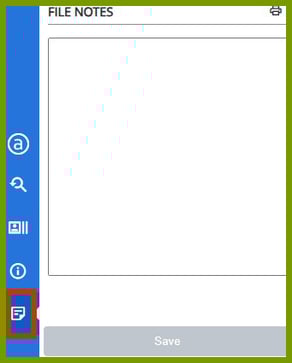
Use File Notes to put a note on a document. This is more of a scratchpad; there is no tracking of these notes. To add a tracked note, use the Document Journal on the right.
On the right side of the document viewer, there are additional options.
##### Document Information
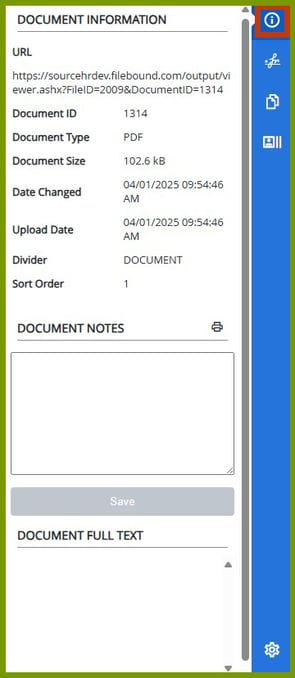
The Document Information section displays details, notes, and full text data associated with the document selected.
##### Document Signatures
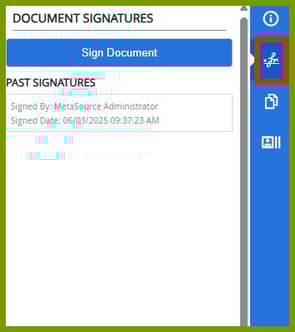
This section allows for digital signatures. If your company is using a service such as DocuSign to obtain signatures, you can send the document for signatures from this page. The signatures are displayed on the document for you to view.
##### Revisions
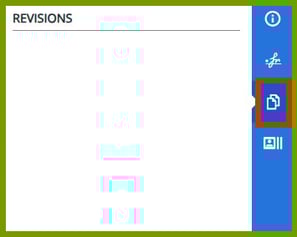
The Revisions section gives you options to view previous versions of the document.
##### Document Journal
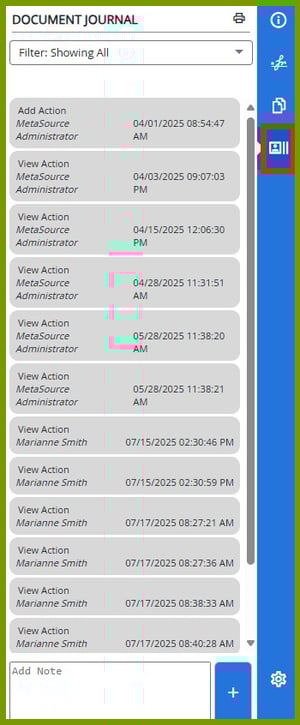
Document Journal is an audit trail of activities and comments made on the document. Use the Add Note area to add a text message to the document. These notes remain with the document and are part of the history.
- [Getting Started](https://knowledgebase.metasource.com/workdocs/getting-started?hsLang=en-us)
- [Taking Action](https://knowledgebase.metasource.com/workdocs/taking-action?hsLang=en-us)
- [Using Features](https://knowledgebase.metasource.com/workdocs/using-features?hsLang=en-us)
- [Reports](https://knowledgebase.metasource.com/workdocs/reports?hsLang=en-us)
[](https://www.metasource.com/)
[getsupport@metasource.com](mailto:getsupport@metasource.com)
[(888) 634-7684](tel:18886347684)
© 2025 MetaSource, LLC. All rights reserved.