
In addition to the Dashboards, there are many reports available to run in WorkDocs.
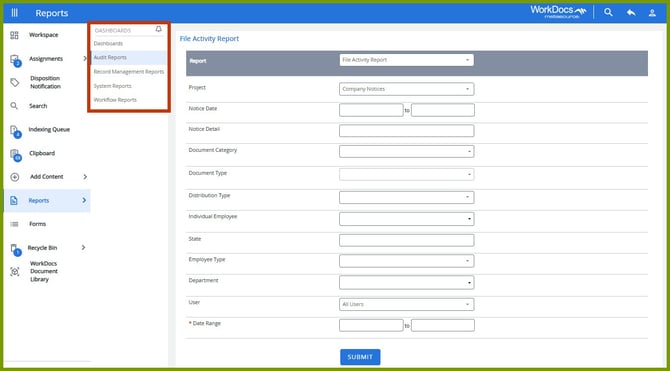
The reports are grouped in categories in the middle column on the Reports page under Dashboards. The options are:
- Audit Reports
- Record Management Reports
- System Reports
- Workflow Reports
Once you pick the category in the middle column, use the Report drop down to select the report you want to run.
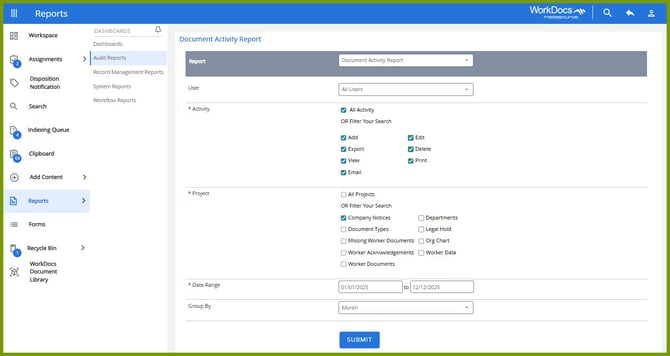
The report parameter fields vary from report to report. In this example, we’re running the Document Activity Report for All Users, All Activity, and for the Project, Company Notices. We entered a date range and indicated how we wanted the information grouped.
Once the fields are completed, click Submit.
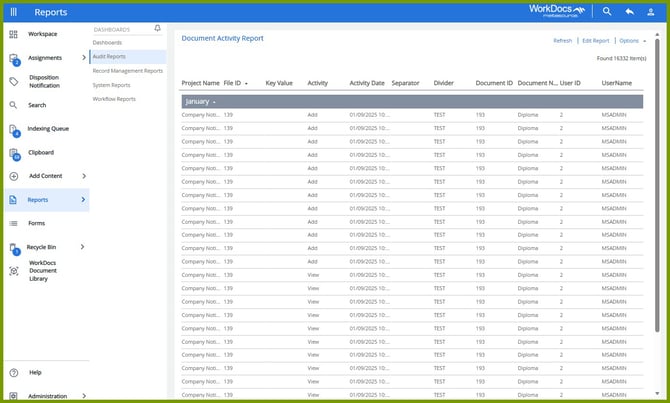
The report results display 25 items per page. Scroll down to view all the items and to move to the next page.
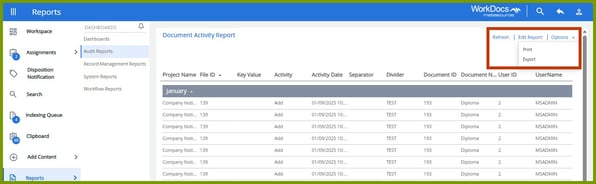
Use Options in the top right to Print or Export the report results.
If you choose Export, a dialog box opens. Select the records to export and the file format to use. Then select OK.
If you choose Export to Excel, an XLSX file is saved to your Downloads folder. If you choose Export to CSV, a CSV file is saved to your Downloads folder. An XLSX file can only be opened in Microsoft Excel. A CSV file can be opened with any text editor in Windows.