---
title: Workspace
description: Discuss this process.
---
[Skip to content](https://knowledgebase.metasource.com/workdocs/workspace#main-content)
[](https://www.metasource.com/)
Open main navigation
Close main navigation
- [Return to WorkDocs™](https://sourcehr.filebound.com/LogOn.aspx)
[Return to WorkDocs™](https://sourcehr.filebound.com/LogOn.aspx)
Hello. How can we help you?
- There are no suggestions because the search field is empty.
1. [WorkDocs Customer Knowledge Center](https://knowledgebase.metasource.com/workdocs?hsLang=en-us)
2. [Using Features](https://knowledgebase.metasource.com/workdocs/using-features?hsLang=en-us)
December 23, 2025
# Workspace
The Workspace feature allows users to customize a page in WorkDocs that gives them quick access to the things that are most important to them, all on one page. When setting up your Workspace page, the user selects the items (widgets) they want included. A widget is a section on the Workspace that displays information based on how you configure the widget. You can manage the widgets together on one tab or create several tabs to organize them based on your specific preferences.
Let’s look at how to set up your Workspace.
#### **Add Tabs to Your Workspace**
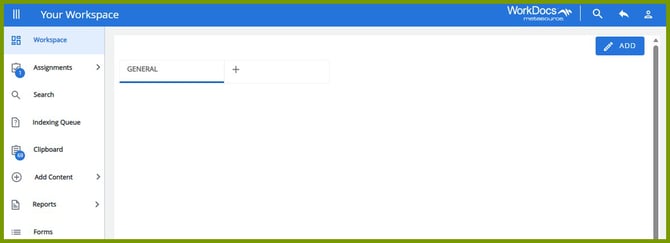
Your Workspace opens with a default tab, **General**. The General tab can’t be renamed or deleted. Based on your needs and preferences, you can place all the widgets on the General tab or create additional tabs to place the widgets into groups that you choose.
For our scenario, we’re going to create two more tabs, Analytics and Clipboard. To add a tab, click the + (plus) sign in the new tab and type the name of the tab. Click the checkmark next to the New Tab box. This saves the new tab and gives you a new blank tab that you can leave or click the + (plus) sign to add another tab.
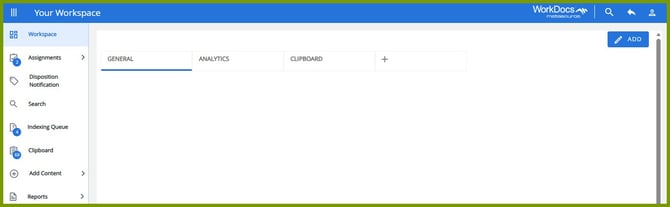
The new tabs are added. You’re ready to add widgets to the tabs.
**Note:** If you want to remove a tab that you’ve added, click the tab you want to remove and click the pencil icon to edit it. You can type a new name or click the trash can to delete it.
#### **Add Widgets to your Workspace**
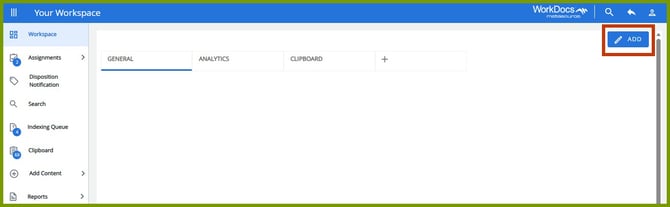
To add a widget to a tab, select the tab and click the **Add** button. We’re going to add widgets to the General tab.
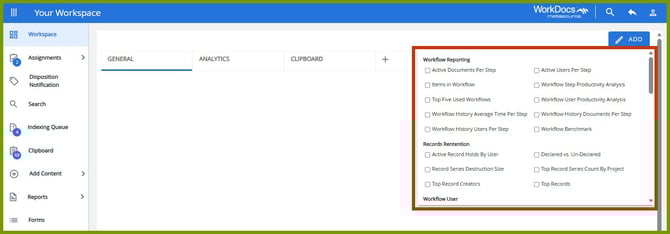
When you click **Add**, a menu with a list of available widgets is displayed. The widgets are grouped into categories. Scroll through the list and select the checkboxes preceding the widgets you want to include on this tab in your Workspace.
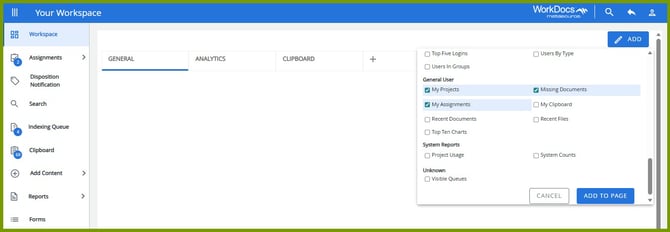
In this scenario, we’re selecting My Projects, My Assignments, and Missing Documents. Once the widgets are selected, scroll to the button options on the bottom and select **Add to Page**.
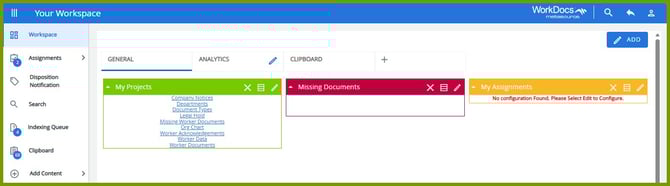
Once the widgets are added, you can use the icons on the top right of the widget to do the following:
- Close – If you select this, the widget is removed from the tab.
- Maximize – If you select this, the widget is expanded to the full width of the page.
- Edit – If you select this, a dialog box opens that allows you to customize what is displayed in the widget. Notice the My Assignments widget, it needs to be configured for information to display. To configure it, click edit. A dialog box displays that allows you to configure the widget.
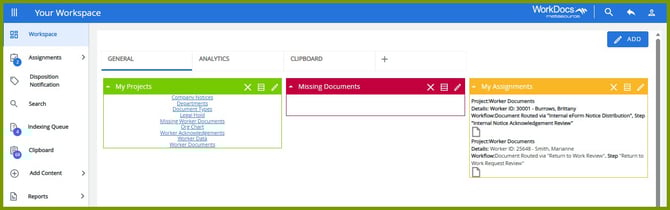
The My Assignments widget was edited to show the Worker Documents project.
Once the widgets for a tab are ready, you can select another tab to add the appropriate widgets.
- [Getting Started](https://knowledgebase.metasource.com/workdocs/getting-started?hsLang=en-us)
- [Taking Action](https://knowledgebase.metasource.com/workdocs/taking-action?hsLang=en-us)
- [Using Features](https://knowledgebase.metasource.com/workdocs/using-features?hsLang=en-us)
- [Reports](https://knowledgebase.metasource.com/workdocs/reports?hsLang=en-us)
[](https://www.metasource.com/)
[getsupport@metasource.com](mailto:getsupport@metasource.com)
[(888) 634-7684](tel:18886347684)
© 2025 MetaSource, LLC. All rights reserved.